How to Stop Apps Tracking Your Location
Your phone's apps are constantly vying for your location data. Learn how to regain control on iOS and Android by managing app-level permissions and more.
By Mira Castell · Published · 13 min read
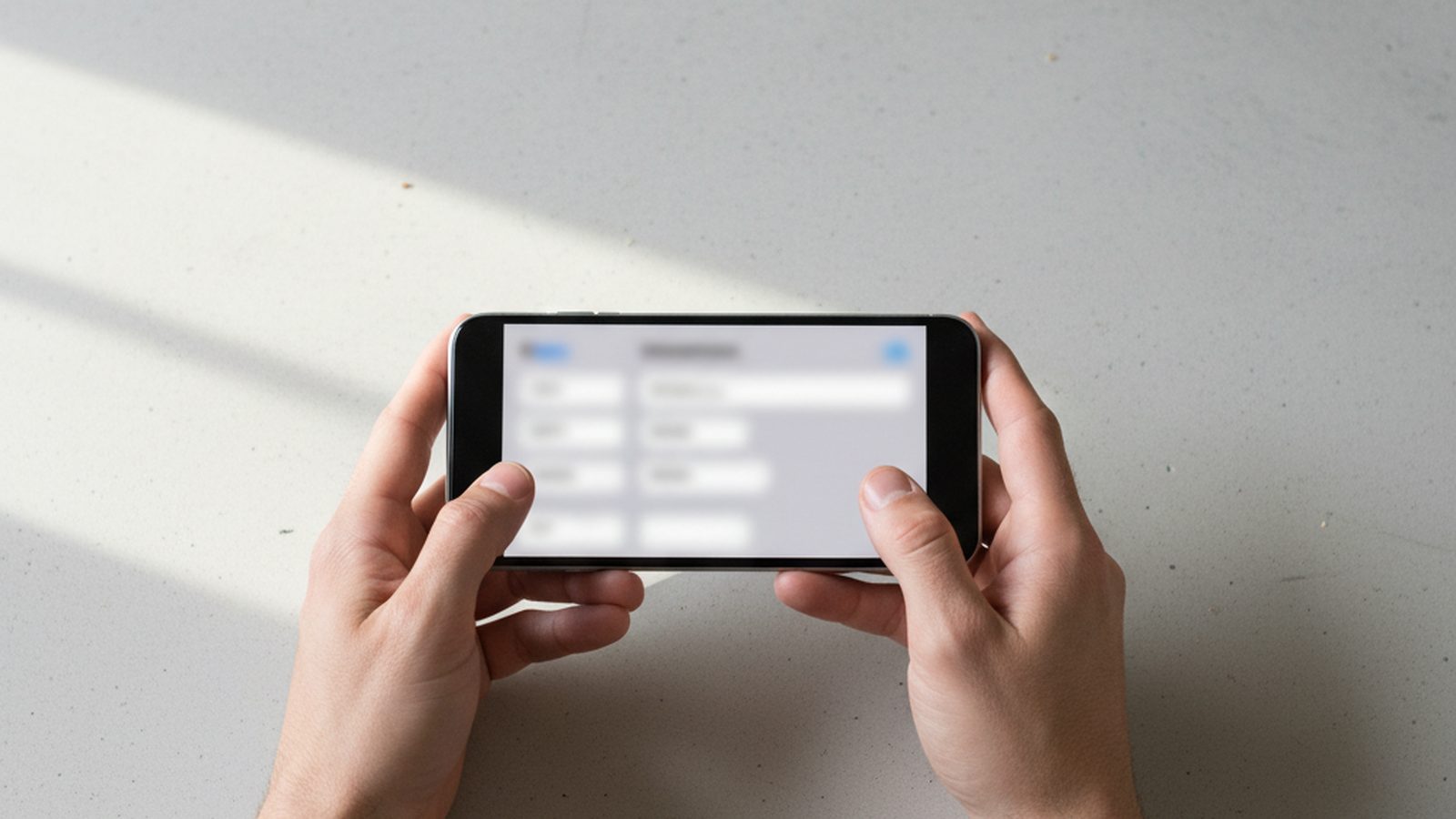
You can stop apps from tracking your location by using your phone’s built-in privacy settings. On both iOS and Android, navigate to your location settings menu to review a list of every app that has requested access and choose a more restrictive permission, such as “While Using the App” or “Never.” Regularly auditing these permissions is the key to minimizing your location data footprint.
Why Apps Want Your Location Data
Location data is one of the most valuable resources a smartphone can provide, and for app developers, it’s a gold mine. There are several reasons why nearly every app, from social media to simple puzzle games, asks for this access. The most common driver is targeted advertising. By knowing your location, advertisers can serve you ads for nearby stores, restaurants, and services. This practice, known as geofencing, allows a brand to send a notification or ad to your phone the moment you enter a specific geographic area, like a shopping mall.
Beyond direct advertising, your location data is a key commodity in the vast, opaque world of data brokerage. App developers can monetize their user base by selling aggregated and often anonymized location data to third-party brokers. These brokers then combine it with other datasets to build incredibly detailed profiles about consumer behavior, which are sold to hedge funds, marketing agencies, and other companies for market analysis. While often anonymized, re-identification is a persistent risk. The privacy implications are significant; regulators are taking notice, as seen when Google was fined €403 million over location data collection practices.
Of course, some apps have legitimate reasons for needing your location. Navigation apps like Google Maps or Waze need it to give you directions. Ride-sharing apps need it to connect you with a nearby driver. A weather app needs your general location to provide an accurate forecast. The problem arises when apps request this data without a clear functional need, collecting it in the background simply because they can. This constant tracking can paint a detailed picture of your life: where you live, where you work, the places you frequent, and the routes you take, all of which can be exposed if the company suffers a data breach.
The Four Tiers of Location Permission
Modern mobile operating systems like iOS and Android have moved beyond a simple on/off switch for location. They now offer a more granular, tiered system that lets you decide how and when an app can access your location. Understanding these tiers is the first step toward taking control.
| Permission Level | Description | Best For | Risk Level |
|---|---|---|---|
| Always | The app can access your location at any time, even when it's closed and not running in the background. | Apps for personal safety, family tracking, or specific automation tasks. | Very High |
| While Using the App | The app can access your location only when it is open and active on your screen, or during a specific active session (like a navigation route). | Navigation, ride-sharing, food delivery, and local search apps. | Medium |
| Ask Next Time / Allow Once | The app must ask for permission every single time it wants to access your location. The permission is temporary for that session only. | Apps you use infrequently or don't fully trust with ongoing access. | Low |
| Never | The app is permanently blocked from accessing your location data. | Most apps, especially games, social media, and utilities that lack a clear location-based feature. | Minimal |
In addition to these tiers, both iOS and Android now include a separate toggle for Precise Location. When enabled, an app gets your exact GPS coordinates. When disabled, it only gets an approximate location, such as the city or neighborhood you're in. For a weather or news app, approximate location is usually sufficient. For a navigation app, precision is essential.
How to Stop App Tracking on iOS
Apple has made privacy a central part of its brand, and iOS provides robust controls for managing location data. Here’s how to perform a full audit.
- Navigate to Location Services. Open the Settings app, scroll down and tap on Privacy & Security, then tap Location Services.
- The Master Switch. At the very top, you'll see a master toggle for `Location Services`. While you can turn this off entirely, it’s not recommended for most users. Doing so will disable critical features like Find My iPhone, Emergency SOS, map functionality, and location-based reminders. It's better to leave this on and manage permissions on an app-by-app basis.
- Review Each App. Below the master switch is a list of every app that has requested location access. Tap on each app one by one to configure its permissions. You will see the options: `Never`, `Ask Next Time or When I Share`, `While Using the App`, and sometimes `Always`.
- Choose the Right Permission. Apply the principle of least privilege. If a photo-editing app is asking for location, choose `Never`. For a food delivery app, `While Using the App` is appropriate. Reserve `Always` for a very small number of trusted apps where background tracking is a core feature you explicitly want.
- Toggle Precise Location. On this same screen for each app, you’ll see the `Precise Location` toggle. Ask yourself if the app truly needs to know exactly where you are standing. For a news app showing local headlines, it only needs to know your city, so you can safely turn this off. For Uber or Lyft, it needs to be on.
- Check System Services. Scroll to the very bottom of the Location Services list and tap on System Services. Here you can manage location use for non-app functions like `Compass Calibration`, `Setting Time Zone`, and `Significant Locations`. It's worth reviewing this list and disabling any you are uncomfortable with, though many are tied to core phone functionality. `Significant Locations`, for instance, tracks places you frequent to provide personalized services like predictive traffic routing. You can view and clear this history here.
How to Stop App Tracking on Android
Android’s location settings are just as powerful as iOS's, though the exact path to find them can differ slightly depending on your phone's manufacturer (e.g., Google Pixel, Samsung, OnePlus). The terminology, however, is largely standardized.
- Navigate to Location Settings. Open the Settings app and find the Location menu. It's usually in the main settings list.
- The Main Toggle. Like on iOS, you'll see a main `Use location` toggle at the top. Again, it's best to leave this on to ensure services like Google Maps, emergency location services, and Find My Device continue to function correctly.
- Manage App Permissions. Tap on App location permissions. This screen gives you a clear overview, often categorized into `Allowed all the time`, `Allowed only while in use`, and `Not allowed`. This dashboard is excellent for spotting the worst offenders in the `Allowed all the time` category.
- Adjust Individual Apps. Tap on any app in the list to change its setting. You’ll see the choices: `Allow all the time`, `Allow only while using the app`, `Ask every time`, and `Don't allow`. Select the most restrictive option that still allows the app to function as you need it to.
- Control Precise Location. Inside the permission screen for each app, you’ll find a `Use precise location` toggle. The logic is the same as on iOS: disable it for any app that can make do with an approximate location to reduce your data exposure.
- Review Google Location History. This is a critical extra step for Android users. Separate from app permissions, your Google Account may be saving a detailed timeline of your movements. To manage this, go to `Settings > Location > Google Location History`. This will take you to your Google Account's Activity controls. From here, you can pause or turn off Location History and also manage auto-delete settings to automatically purge your data after 3, 18, or 36 months.
Beyond App Permissions: Other Leaks to Plug
Locking down app permissions is a huge step, but location data can leak in other ways. A truly comprehensive approach involves looking at your advertising ID, photo metadata, and browser settings.
- Advertising ID: Both iOS and Android use a resettable device ID for ad tracking. On iOS, go to `Settings > Privacy & Security > Tracking` and turn off `Allow Apps to Request to Track`. This prevents apps from using the IDFA (Identifier for Advertisers). On Android, go to `Settings > Google > Ads` and tap `Delete advertising ID`. This removes the identifier apps use to build a profile of you.
- Photo Geotagging (EXIF Data): By default, your phone's camera may embed the exact GPS coordinates where a photo was taken into the image file's metadata (known as EXIF data). When you share that photo online, you could be sharing your location. You can typically disable this in your camera app's settings. Look for an option called `Location tags`, `Geotags`, or `Save location`.
- Browser & Wi-Fi Tracking: Your web browser can also give away your location. Websites can request it, just like apps. It's wise to review your browser privacy settings that actually matter to ensure sites can't access your location without permission. Furthermore, your phone can be located via Wi-Fi and Bluetooth scanning, even with GPS off. Your device scans for nearby networks, and databases exist that map Wi-Fi network locations (BSSIDs) to physical addresses.
- Data Brokers: Unfortunately, even if you secure your phone today, your past location data may already be in the hands of data brokers. These companies scrape and buy personal information from thousands of sources. While you can't undo the past, you can take steps to remove your information from these databases going forward. Understanding how data removal services work (and which is best) can help you scrub your public-facing profile from the internet, making you a harder target for data compilation.
Building a Privacy-First Habit
Protecting your location privacy isn't a one-time fix; it requires ongoing vigilance. The digital landscape is constantly changing, and new apps or OS updates can reset your preferences or introduce new tracking methods. The goal is to make privacy a regular habit, not an occasional chore.
Follow this simple checklist to stay on top of your location data:
- Audit Quarterly: Set a calendar reminder every three months to go through your phone’s location settings. Review every app and revoke permissions for any you no longer use or trust.
- Default to 'Never': When installing a new app, be skeptical. If it asks for your location, your default answer should be no. Only grant access if its core function absolutely depends on it.
- Avoid 'Always': The `Always` permission setting should be extremely rare. Challenge whether any app truly needs to know where you are 24/7. In most cases, `While Using the App` is sufficient.
- Go Approximate: Get into the habit of disabling `Precise Location` for any app that doesn't need your exact coordinates.
- Prune Your History: Regularly check and clear your Google Location History (Timeline). Set it to auto-delete data older than three months.
By taking these steps, you dramatically reduce your digital footprint and make it harder for companies to build a minute-by-minute profile of your life. While no single action can make you invisible, this layered defense is the most effective strategy for reclaiming your digital privacy in a world that constantly asks, "Where are you now?" Knowing your data has likely been exposed in the past, it's also smart to know what to do after your data is exposed in a breach.