How to Set Up Two-Factor Authentication Properly
Strengthen your account security by enabling two-factor authentication (2FA). Our guide explains the different types of 2FA and how to set them up properly.
By Lena Hart · Published · 12 min read
Two-factor authentication, or 2FA, adds a critical second layer of security to your online accounts, requiring a second piece of information beyond just your password to log in. Setting it up correctly is one of the single most effective steps you can take to protect your digital life from unauthorized access, even if your password is stolen.
Why Passwords Alone Aren't Enough
For decades, the password has been the primary key to our digital lives. But in the modern threat landscape, a password alone is a fragile defense. Massive data breaches are now a common occurrence, leaking billions of usernames and passwords onto the dark web. Attackers use these stolen credentials in automated attacks called [credential stuffing](/posts/credential-stuffing-explained), where they try the same username and password combination across hundreds of different services, hoping for a match.
Even if your password has never been in a breach, it can be guessed or stolen through other means. Phishing attacks trick users into entering their credentials on fake login pages, while malware can capture keystrokes directly from your computer. The simple truth is that any password can be compromised. 2FA works on the principle that an attacker is unlikely to have both your password *and* access to your second factor.
Understanding the Different Types of 2FA
Not all 2FA is created equal. The methods vary in security and convenience, and choosing the right one is crucial. Most services will offer one or more of the following options.
SMS and Email Codes
This is the most common and widely understood form of 2FA. When you log in, the service sends a temporary, single-use code to your registered phone number via text message or to your email address. You then enter this code to complete the login.
- Pros: Extremely easy to use and widely available, as almost everyone has a phone number and email address.
- Cons: This is the least secure method. SMS messages can be intercepted, and attackers can perform a "SIM swap" attack, where they trick your mobile carrier into transferring your phone number to a device they control. This gives them access to all your SMS-based codes. If an attacker gains control of your email account, they can also intercept email-based codes, using it as a pivot point to take over other connected accounts. For this reason, security bodies like the U.S. National Institute of Standards and Technology (NIST) have advised against using SMS for authentication.
If SMS is the only option, it's still far better than no 2FA at all. But if you have the choice, you should always opt for a stronger method. If you must use SMS, take steps to protect your phone number from SIM swaps.
Authenticator Apps
Authenticator apps generate Time-based One-Time Passwords (TOTP). These are six-digit codes that refresh every 30 or 60 seconds. To set it up, you scan a QR code provided by the service, which creates a shared secret between the service and your app. Popular apps include Google Authenticator, Microsoft Authenticator, Authy, and Duo.
- Pros: Significantly more secure than SMS. The codes are generated locally on your device and are not transmitted over the vulnerable cellular network. They work even if your phone has no signal.
- Cons: It requires you to install a separate app. If you lose your phone, you could be locked out of your accounts unless you have saved your backup codes (more on that later).
Push Notifications
Instead of a code, some services (especially those with their own mobile apps, like Google, Microsoft, and Apple) will send a push notification to your trusted device when a login attempt is made. You simply tap "Approve" or "Deny."
- Pros: Very convenient and user-friendly—often just a single tap is needed.
- Cons: This method is vulnerable to "MFA fatigue" or "prompt bombing." Attackers who have your password can repeatedly trigger login attempts, flooding you with push notifications in the hope that you will eventually approve one by accident just to make the notifications stop.
Hardware Security Keys
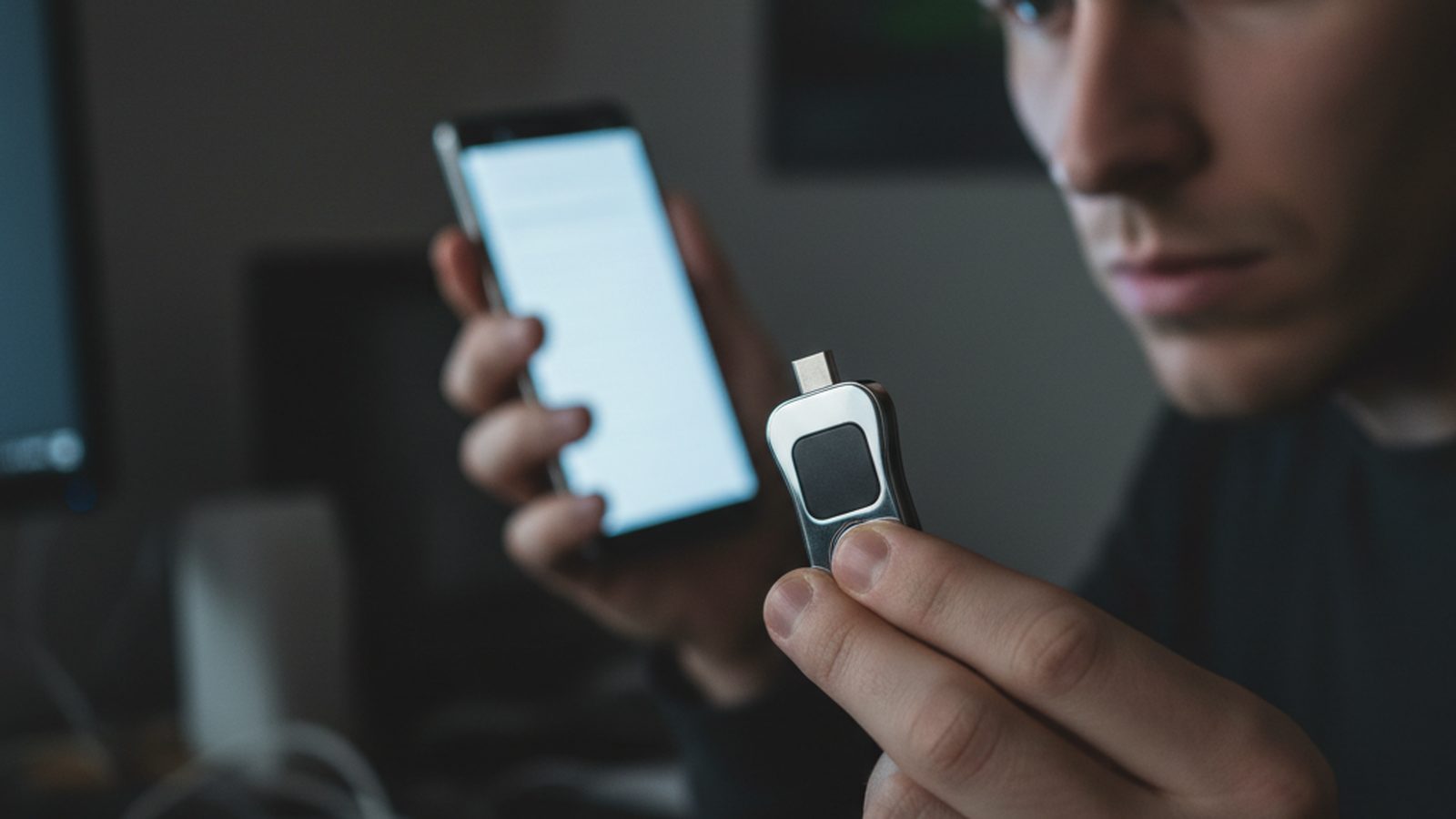
Hardware security keys are the gold standard for 2FA. These are small physical devices, often resembling a USB drive (like a YubiKey or Google Titan Key), that you plug into your computer or tap on your phone (via NFC) to approve a login. They use strong public-key cryptography and adhere to standards like FIDO2/WebAuthn.
- Pros: The most secure form of 2FA available. They are almost completely resistant to phishing, as the key will only communicate with the legitimate website it was registered with, not a fake one. A physical device must be present to log in.
- Cons: They cost money (typically $20-$70). You need to carry the key with you, and you risk losing it. Most experts recommend buying at least two keys—one for daily use and one stored in a safe place as a backup.
The technology behind hardware keys is also powering the next wave of authentication, known as passkeys, which aim to replace passwords entirely. You can learn more about what passkeys are and if you should switch in our dedicated guide.
How to Set Up 2FA: A Step-by-Step Guide
Enabling 2FA is usually a straightforward process. Here’s a general guide that applies to most services:
- Find Your Security Settings: Log into the website or app for the account you want to secure. Look for a section named “Security,” “Login & Security,” “Account Security,” or “Two-Factor Authentication.” This is usually found within your main account settings or profile menu.
- Start the 2FA Setup: Look for an option to “Enable,” “Turn On,” or “Set Up” two-factor authentication. The service will likely ask you to re-enter your password to proceed.
- Choose and Configure Your Method:
- - For an authenticator app: The service will display a QR code on the screen. Open your chosen authenticator app (Google Authenticator, Authy, etc.) and select the option to add a new account. Use your phone's camera to scan the QR code. The app will then start generating 6-digit codes for that service. To verify, the website will ask you to enter the current code from your app.
- - For a hardware key: The service will prompt you to insert your key into a USB port or hold it near your phone. You will then need to touch the button on the key to prove your presence and complete the registration.
- - For SMS: You will be asked to enter your phone number. The service will send you a test code, which you'll need to enter on the site to confirm you have access to that number.
- SAVE YOUR BACKUP CODES: This is the most important and most often-skipped step. Almost every service will provide you with a set of single-use backup codes (or a recovery key) upon enabling 2FA. These codes are your lifeline if you lose your phone or hardware key. You must save them in a secure location. Do not save them as a text file on your desktop. The best practice is to store them inside a secure password manager, or to print them out and keep the physical copy in a safe, like with your passport or other important documents.
Choosing the Right 2FA Method for You
To help you decide, here is a comparison of the most common 2FA methods:
| Method | Security Level | Convenience | Phishing Resistance |
|---|---|---|---|
| SMS/Email Codes | Low | High | Low |
| Authenticator App (TOTP) | High | Medium | Medium |
| Push Notifications | High | High | Low-Medium |
| Hardware Key (FIDO2) | Very High | Low-Medium | Very High |
For your most important accounts—especially your primary email, password manager, and financial accounts—using a hardware key provides the strongest protection. For most other services, an authenticator app is an excellent and secure choice.
Common Mistakes to Avoid
Setting up 2FA correctly also means avoiding common pitfalls that can undermine its security benefits.
- Not saving backup codes: Losing access to your 2FA device without backup codes can lead to being permanently locked out of your account.
- Approving unfamiliar push notifications: If you get a login approval request you didn't initiate, always press "Deny." This is a sign someone has your password and is trying to get in.
- Being phished for your 2FA code: Scammers will often try to trick you into giving them your temporary code. A common tactic is a fake alert message saying "We detected a suspicious login. To secure your account, please enter the code we just sent you." No legitimate company will ever ask for your 2FA code over the phone, email, or text. This is a crucial element of how to spot a phishing email.
- Only registering one 2FA method: If a service allows, register multiple methods. For example, you could have both an authenticator app and a hardware key registered to your Google account. This provides redundancy if one method fails or is lost.
Your Next Steps for a More Secure Digital Life
Securing your accounts with 2FA isn't a one-time project; it's an ongoing practice. By making it a habit for every new service you sign up for, you build a resilient defense against the most common types of account takeovers. Here is a checklist to get started:
- Audit your critical accounts. Make a list of your most important accounts: primary email, banking, social media, and your password manager. These are your top priority.
- Enable 2FA today. Go through your list and enable the strongest form of 2FA available for each service. Start now, even if you only do one account.
- Use an authenticator app. Ditch SMS for an app like Authy or Microsoft Authenticator. It's a massive security upgrade that's easy to implement.
- Consider a hardware key. For your most vital accounts (like your email, which is often the key to resetting all other passwords), invest in a pair of hardware security keys.
- Secure your backup codes. Treat your backup codes like a spare key to your house. Store them somewhere safe and separate from your 2FA device. A password manager is an ideal digital location.