How to Secure Your Home Wi-Fi Router
Your Wi-Fi router is the gateway to your digital life. Learn the essential steps to secure it, from changing default passwords to enabling WPA3 encryption.
By Dev Okafor · Published · 12 min read
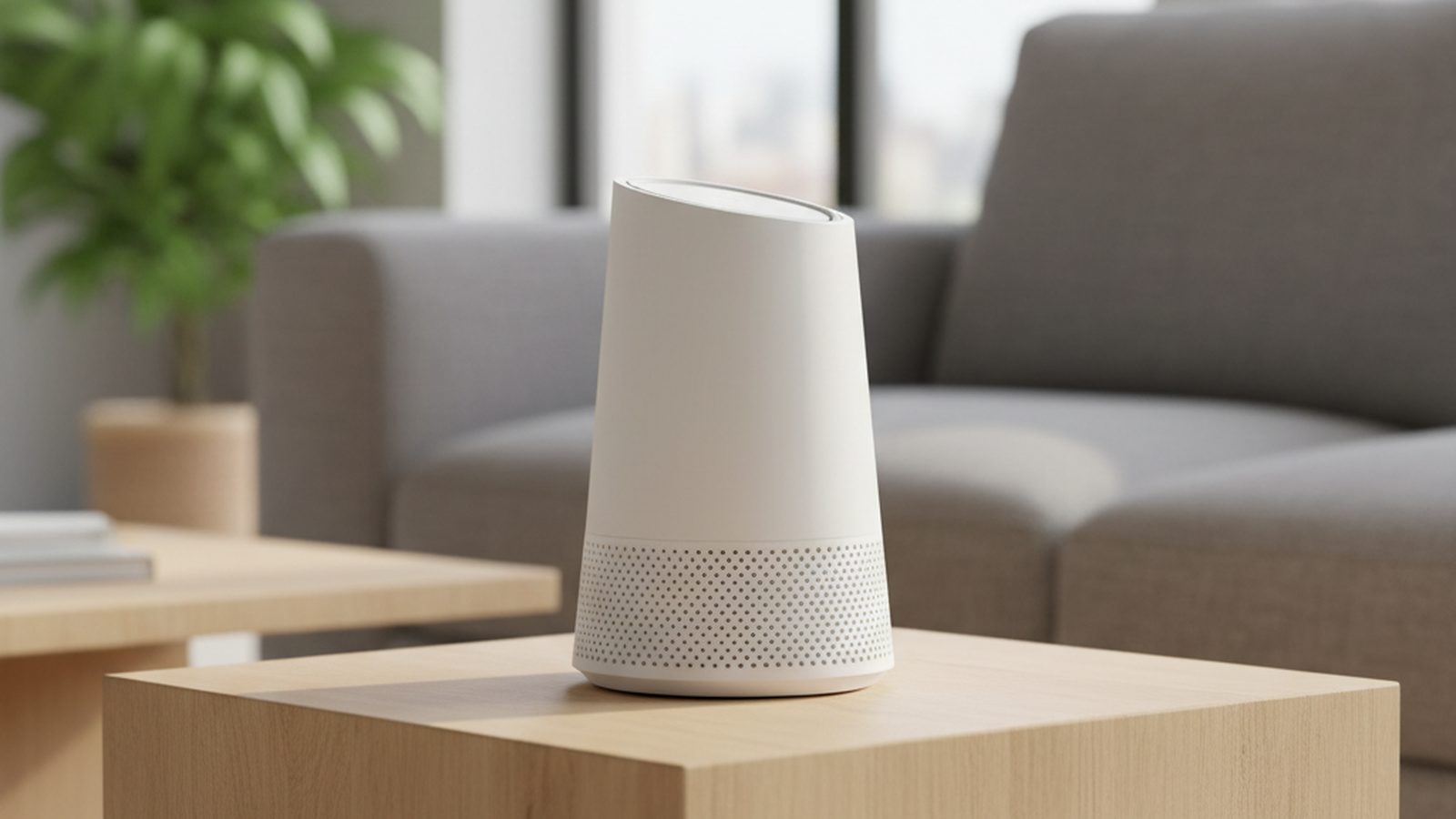
Securing your home Wi-Fi router is one of the most important steps you can take to protect your digital life. The most critical actions are to change the router's default administrator password, use a strong and unique password for your Wi-Fi network itself, and enable the highest level of encryption available, preferably WPA3. Keeping your router's firmware updated is also essential to protect against the latest threats.
Why Your Router is a Prime Target
Your router is the central hub of your home network, the single point of entry for all your internet-connected devices. From laptops and smartphones to smart TVs and security cameras, every device sends its traffic through this unassuming box. This makes it an incredibly valuable target for cybercriminals. If an attacker gains control of your router, they can potentially intercept all your unencrypted internet traffic, redirect you to malicious websites, install malware on your devices, or even enlist your router into a botnet for larger-scale attacks.
A compromised router is more than just an inconvenience; it’s a catastrophic failure of your home’s digital security perimeter. An attacker could monitor your browsing habits, steal login credentials for your bank, or capture private messages. In some cases, they can use your internet connection to conduct illegal activities, making it appear as if they originated from your home. The stakes are high, which is why treating router security as a priority is non-negotiable.
First Steps: The Admin Interface
Before you can secure your router, you need to access its settings, often called the admin panel or web interface. This is typically done through a web browser on a computer connected to the network.
To find your router's address: 1. Look for a sticker on the router itself. It usually lists a default IP address, like 192.168.1.1 or 192.168.0.1, along with a default username and password. 2. On Windows, open the Command Prompt, type `ipconfig`, and look for the "Default Gateway" address. 3. On macOS, go to System Settings > Network > Wi-Fi, click the "Details..." button next to your network, and find the "Router" address.
Once you type this address into your browser's URL bar, you'll be prompted for a username and password. This is where the first, most critical security step comes in.
Change the Default Admin Password
Every router ships with a default administrator username and password, such as "admin" and "password." These are public knowledge and easily found online. Leaving them unchanged is like leaving the front door of your house wide open with the key in the lock. This admin password is not the same as your Wi-Fi password; it only grants access to the router's settings.
Your very first action should be to navigate to the administration or security section of the router's settings and change this password to something long, strong, and unique. If you struggle to remember complex passwords, consider learning more about password managers. It's a simple question: [Do you need a password manager?](/posts/do-you-need-a-password-manager) The answer is almost certainly yes.
Disable Remote Administration
Remote administration (or remote management) allows you to access your router's settings from outside your home network. While it may sound convenient, it exposes your router's login page to the entire internet, dramatically increasing its attack surface. Unless you have a very specific and advanced reason for needing this feature, it should be disabled. Most home users will never need it. Look for a setting called "Remote Management," "Remote Administration," or "Web Access from WAN" and ensure it is turned off.
Securing Your Wireless Network
Once the administrative access is locked down, the next step is to secure the wireless signal itself. This is what prevents neighbors or attackers in a nearby car from connecting to your network and using your internet.
Choose a Strong Wi-Fi Password (Passphrase)
Your Wi-Fi password, or passphrase, is the key that lets devices join your network. It needs to be strong. Avoid simple words, birthdays, or pet names. A strong passphrase is long and complex. The best practice is to use a randomly generated string of at least 20 characters, including upper and lower case letters, numbers, and symbols. If that’s hard to type into devices, a long phrase of four or more random words (e.g., "CorrectHorseBatteryStaple") is also a very strong and more memorable alternative.
Use the Strongest Encryption: WPA3
Encryption scrambles the data flying through the air so that only authorized devices can understand it. Modern routers offer several encryption standards. You should always choose the highest level your devices support.
- WPA3 (Wi-Fi Protected Access 3): This is the current, most secure standard. It offers superior protection against password-guessing attacks and ensures even data on public networks is better protected. If your router and devices support it, use WPA3-Personal.
- WPA2-AES: For years, this was the gold standard and is still a very secure option if WPA3 is not available. Ensure you are using WPA2 with AES encryption, not the older and less secure TKIP protocol. A common setting is "WPA2/WPA3-Personal" or "Mixed Mode," which is a good compromise for compatibility.
- WPA and WEP: These are obsolete and insecure. If your router only offers these options, it is ancient and needs to be replaced immediately. WEP can be cracked in minutes with freely available tools.
Change the Default SSID (Network Name)
The SSID is your network's public name. Routers often ship with default SSIDs that include the manufacturer's name and sometimes the model number (e.g., "NETGEAR55," "TP-Link_C8A2"). While changing it doesn't directly stop an attack, it's good security hygiene. It prevents you from advertising what hardware you use, which could give an attacker a head start in finding vulnerabilities for that specific model. Change it to something unique and non-identifying—don't use your name, address, or other personal information.
Advanced Settings for Better Security
For those willing to go a step further, most routers have additional settings that can significantly improve your security posture.
Keep Your Firmware Updated
Firmware is the low-level software that runs your router. Manufacturers regularly release firmware updates to patch security vulnerabilities, fix bugs, and sometimes add new features. These vulnerabilities can be severe, allowing attackers to take complete control of the device. Many modern routers can automatically check for and install updates. If yours doesn't, make a habit of logging into your admin panel quarterly to check for updates manually. This single habit is one of the most effective ways to defend against new threats.
Set Up a Guest Network
Most modern routers allow you to create a separate guest network. This is a powerful security feature. A guest network provides internet access but is isolated from your main network. This means a guest's device—whether it's a friend's phone or your cousin's laptop that could be infected with malware—cannot see or access your trusted devices like your computers, network-attached storage (NAS), or printers. It’s a simple way to contain potential threats. Always password-protect your guest network, too.
Disable WPS (Wi-Fi Protected Setup)
WPS is a feature designed to make it easy to connect devices to the network, often by pushing a button on the router. However, certain implementations of WPS have been shown to have serious vulnerabilities that allow an attacker to brute-force the PIN and gain access to your network password. The convenience is not worth the risk. Find the WPS settings in your admin panel and disable the feature entirely.
Some newer devices may have cloud management accounts, which let you manage the router through a mobile app. If your router has this feature, it's vital to secure that account properly. The best way to do this is to learn [how to set up two-factor authentication properly](/posts/set-up-two-factor-authentication), which adds a critical second layer of security to your login.
Debunking Ineffective Security Myths
There's a lot of outdated advice on the internet. Two common "tricks" provide a false sense of security and are not worth the effort.
MAC Address Filtering: This feature allows you to create a list of approved devices (by their unique MAC hardware address) that can connect. This sounds great in theory, but it is trivial for a determined attacker to bypass. They can simply sniff the traffic, find the MAC address of an already-approved device, and then spoof their own device's MAC address to match it.
Hiding the SSID: Some guides recommend hiding your network name to make it invisible. However, this does not actually stop the network from broadcasting. It only stops it from broadcasting its *name*. Anyone with basic network analysis tools can still see the network traffic and its presence. Hiding the SSID can also create connection problems for some of your own devices, making it more trouble than it's worth.
| Method | Effectiveness | Recommendation |
|---|---|---|
| WPA3 Encryption | Very High | Use this. The gold standard for wireless security. |
| Strong Admin Password | Very High | Essential. The first thing you should do. |
| Firmware Updates | Very High | Essential. Protects against known exploits. |
| Guest Network | High | Highly Recommended. Isolates untrusted devices. |
| Hiding SSID | Very Low | Not recommended. Causes more problems than it solves. |
| MAC Filtering | Very Low | Not recommended. Easily bypassed and a hassle to manage. |
A Continual Process, Not a One-Time Fix
Securing your home Wi-Fi is not a set-it-and-forget-it task. It's an ongoing process of vigilance. Your router is a computer, and like any computer, it needs regular maintenance to stay secure. The digital landscape is constantly changing, and a new vulnerability could be discovered tomorrow that affects your device.
Here’s a final checklist to keep your network safe:
- Change the default admin username and password.
- Use a strong, unique Wi-Fi password with WPA3 encryption.
- Keep your router's firmware up to date.
- Disable remote administration and WPS.
- Use a guest network for visitors and untrusted IoT devices.
- Change the default SSID to something anonymous.
By following these steps, you can turn your router from your network's weakest link into a strong digital guardian for your home. If you ever discover your network has been compromised, it's crucial to know [what to do after your data is exposed in a breach](/posts/what-to-do-after-a-data-breach) to minimize the damage.