How to Lock Down Your Social Media Privacy Settings
Take control of your digital footprint. Our guide walks you through the essential privacy settings on Facebook, X, Instagram, and more to protect your data.
By Sam Reyes · Published · 12 min read
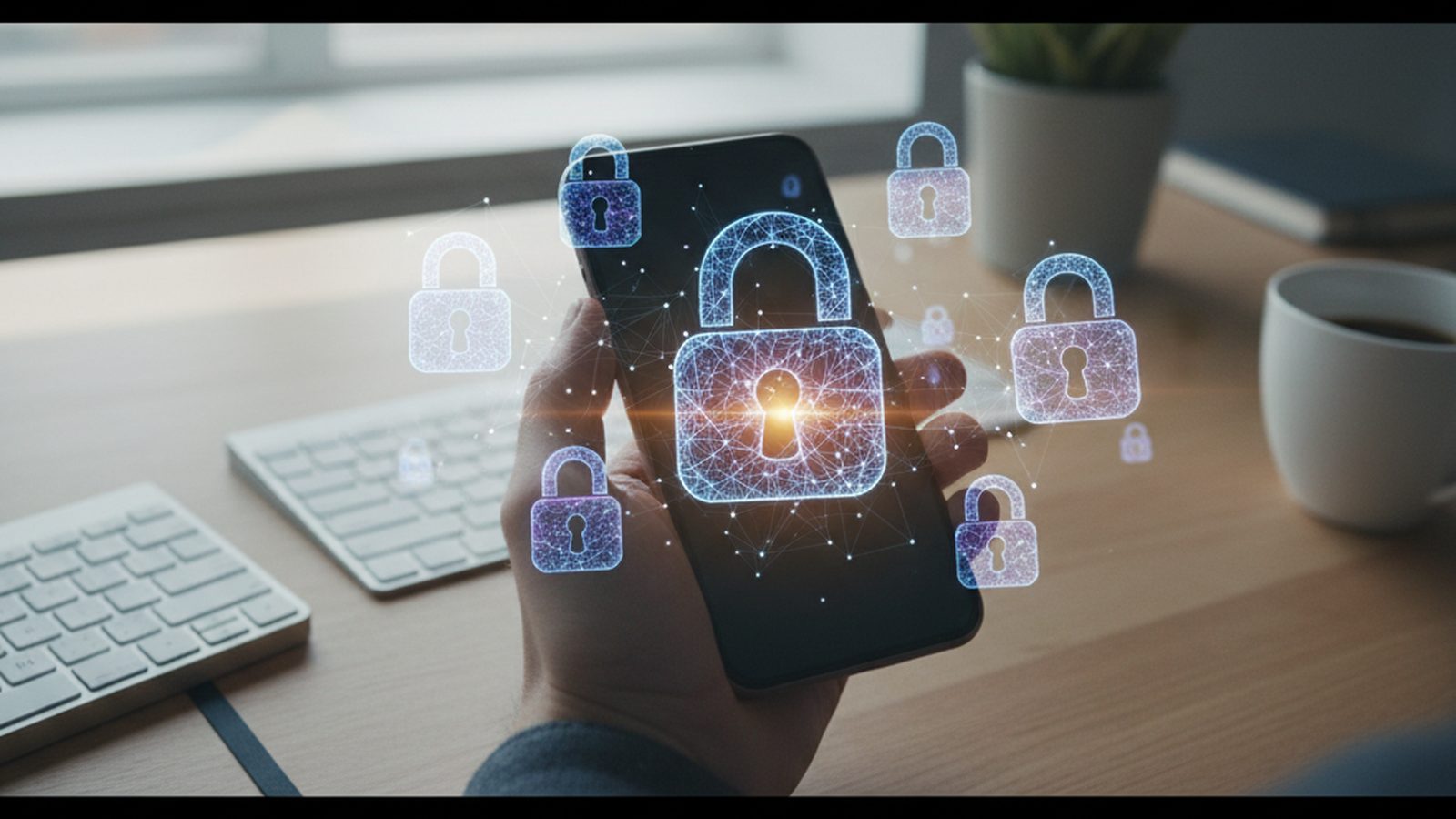
Social media privacy settings are the tools platforms provide to control who sees your information and how it is used. Mastering them involves regularly auditing your audience controls, limiting data shared with third-party apps, and enabling crucial security features like two-factor authentication to create a strong defensive layer around your digital life.
Why Your Social Media Privacy Matters
It's easy to dismiss privacy concerns with "I have nothing to hide," but the data exposed on social media is a valuable commodity for advertisers, data brokers, and malicious actors. Every piece of information—your birthday, hometown, employer, and even your friends list—forms a detailed profile of your life. This data can be used to answer security questions to hijack other accounts, or to build a convincing pretext for a phishing attack.
In the hands of criminals, public posts can lead to real-world harm, including stalking and doxxing (publishing private information with malicious intent). For professionals, an old, ill-advised post from a decade ago can surface during a background check and damage career prospects. Platforms themselves use this data for sophisticated ad targeting, influencing your purchasing decisions and even your worldview. Taking control of your privacy settings is not about hiding; it's about controlling your own narrative and protecting yourself from predictable risks.
Universal Privacy Principles
While every platform has its own unique interface, a few core principles apply universally. Internalizing these habits will serve you well across any service you use.
Adopt the Principle of Least Privilege This is a foundational concept in security. In social media terms, it means: **share only what is necessary, with the smallest audience necessary**. Instead of posting publicly by default, make "Friends" or "Followers" your standard setting. Don't volunteer extra information in your profile, like your full birthdate or phone number, if it's not required. The less you share, the smaller your attack surface.
Conduct Regular Privacy Audits Platforms constantly change their settings, add new features, and update their policies. A setting you configured last year might not exist anymore or may have been reset after an app update. Schedule a recurring calendar event—quarterly or semi-annually—to perform a privacy check-up. Go through the privacy and security settings of each app you use. It’s a 30-minute task that pays huge dividends.
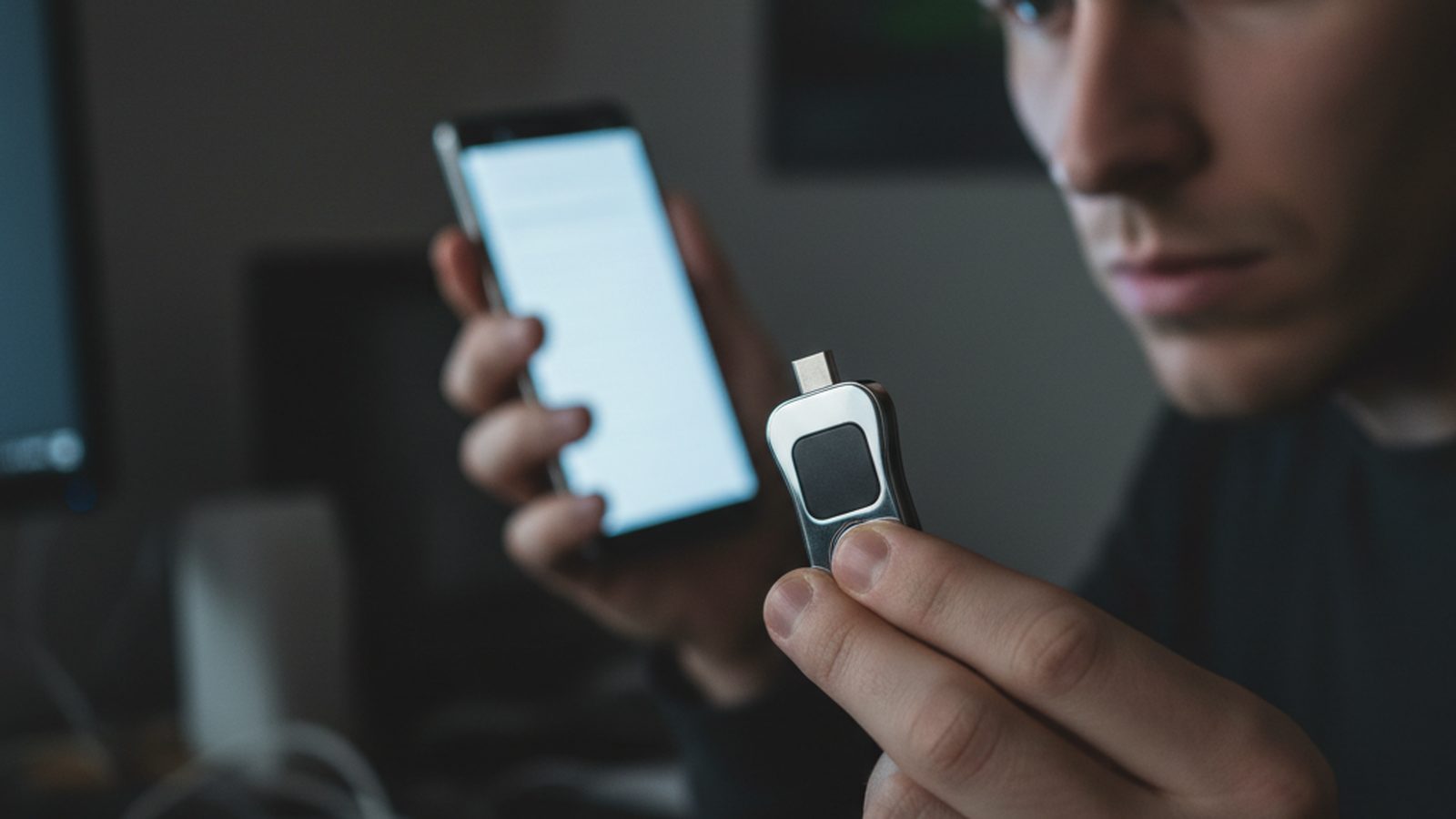
Fortify Your Account Security Privacy and security are two sides of the same coin. A locked-down profile is useless if an attacker can simply log in as you. Your first line of defense is a strong, unique password for every social media account. Your second, non-negotiable line of defense is two-factor authentication (2FA). This requires a second piece of information (usually a code) in addition to your password. It's one of the single most effective things you can do to secure an account. We strongly recommend you learn [how to set up two-factor authentication properly](/posts/set-up-two-factor-authentication) using an authenticator app rather than SMS, which is vulnerable to SIM-swapping attacks.
Be Wary of Third-Party Apps Those fun quizzes, games, and third-party services that ask to connect to your social media profile are a primary vector for data leakage. When you grant them access, you are often giving them a continuous pipeline to your personal data, friends list, and even the ability to post on your behalf. Review your connected apps regularly and revoke access for any service you no longer use or trust.
Platform-Specific Settings: A Deep Dive
Here’s a breakdown of the most critical settings to find and configure on major social media platforms. Note that menus change, so these instructions are a guide to what you should be looking for.
Facebook (Meta) Facebook's settings can feel like a labyrinth, but its "Privacy Checkup" tool is an excellent guided tour.
- Who can see what you share: Set your default future post audience to "Friends." Use the "Limit Past Posts" tool to change all your old public posts to "Friends" in a single click.
- How people find you: Under "How People Find and Contact You," change the settings for who can look you up using your email address or phone number from "Everyone" to "Friends" or "Only Me."
- Timeline and Tagging: Enable "Review posts you're tagged in before the post appears on your timeline?" This gives you veto power over photos and posts you're associated with.
- Off-Facebook Activity: This is a crucial one. It shows you a list of businesses and organizations that share your activity with Meta. You can clear your history and manage future activity to reduce cross-site tracking.
- Apps and Websites: This is where you find and remove third-party app connections.
X (formerly Twitter) On X, the primary privacy choice is all or nothing: a public or private account.
- Protect your Posts: Found in "Privacy and safety," this setting makes your account private. Only your approved followers can see your posts, and they cannot be retweeted. Your posts also won't appear in Google search results.
- Photo Tagging: You can control who is allowed to tag you in photos, from anyone to only people you follow, or disable it completely.
- Discoverability and Contacts: Prevent others from finding you by your email address or phone number. You can also remove contacts you've previously uploaded.
- Audience and Tagging: This menu contains the photo tagging options and lets you manage your audience for new posts.
Instagram (Meta) As a visual platform, Instagram's privacy focuses on controlling who sees your photos, videos, and stories.
- Private Account: Like X, this is the main privacy lever. Toggling this on means only approved followers can see your content.
- Story Controls: You can hide your story from specific people and control who can reply to or share your stories.
- Activity Status: Don't want people to know when you're online? Disable "Show Activity Status" to hide the green dot and your last active time.
- Limits and Hidden Words: These features help you manage harassment. "Limits" lets you temporarily pause interactions from new followers or non-followers, while "Hidden Words" filters out comments and message requests containing offensive terms.
- Tags and Mentions: Control who can tag or mention you in their content, limiting it to people you follow or disabling it entirely.
LinkedIn LinkedIn is a professional network, so your privacy needs are different. You want to be discoverable by recruiters but may want to hide your activity from your current employer.
- Profile viewing options: You can browse other profiles in "private mode," which hides your identity from the people you view.
- Share job changes, education changes, and work anniversaries: Turn this off to prevent your network from being notified every time you update your profile.
- Who can see your connections: Change this from "Your connections" to "Only you" to prevent competitors or others from seeing your professional network.
- Job seeking preferences: Signal to recruiters that you're open to work without alerting your current employer. There's a specific setting to make your interest visible only to recruiters using LinkedIn Recruiter.
TikTok With its powerful algorithm and young user base, locking down TikTok is essential.
- Private Account: Just like on other platforms, this restricts your audience to approved followers.
- Interaction Controls: Go through the settings for Comments, Mentions, Direct Messages, Duet, and Stitch. For each, you can restrict interactions to "Friends" (followers you follow back) or turn them off completely.
- Video Downloads: Turn this off to prevent others from saving your videos to their devices.
- Ad personalization: Disable the setting that allows ads to be targeted to you using data from third-party partners.
Beyond the Settings: Digital Hygiene Habits
Technical settings are only part of the solution. Good digital hygiene is the practice of being mindful and deliberate in your online actions.
- Think Before You Share: Before you post, apply the "newspaper test." Would you be comfortable with this content on the front page of a major newspaper? Remember that even private posts can be screenshotted and shared.
- Beware of Location Data: Most smartphones embed GPS coordinates into photos (known as EXIF data). Social media platforms often strip this data, but it's not guaranteed. Turn off location tagging for your phone's camera app or use an app to scrub metadata before uploading.
- Recognize Social Engineering: Social media is a goldmine for attackers planning phishing campaigns. They can use your public information to craft highly convincing fake messages. Learning how to spot a phishing email or text is a critical skill for any internet user. Using public Wi-Fi can also expose you to risks, which is why it's important to secure your home Wi-Fi router and be cautious on open networks.
The Data Broker Connection
Even with a perfectly configured, private social media profile, your data is still at risk. Information brokers and people-search sites systematically scrape public sections of social media. They collect names, locations, profile pictures, and friend lists, then combine this data with information from other public records, marketing databases, and past data breaches.
This creates a shadow profile of you that can be far more detailed than what you share on any single platform. These profiles are bought and sold legally for marketing, recruiting, and background checks. This is where personal data management becomes a larger project than just tweaking settings. The choice often comes down to a comparison of DIY opt-outs vs a data removal service, which automates the tedious process of getting your information off these sites.
Your Privacy Checklist for Action
Feeling overwhelmed? Don't be. Start with these high-impact actions to immediately improve your social media privacy.
- Enable 2FA: Turn on two-factor authentication for every social media account. Use an authenticator app if possible.
- Go Private by Default: Set your default post audience to "Friends" or the most restrictive option available.
- Audit Third-Party Apps: Review all connected apps and remove any you don't recognize or no longer use. Do this quarterly.
- Limit Discoverability: Stop platforms from letting people find you using your phone number or email address.
- Disable Location Services: Turn off location tagging for your camera and review location sharing settings within each app.
- Review Tagging Settings: Enable timeline or tag review so you can approve any content you're tagged in.
- Prune Your Profile: Remove sensitive, non-essential information like your full birthdate, phone number, and home address.
- Opt Out of Ad Tracking: Find the advertising settings and disable personalization based on your activity on other apps and websites.